

How to Install Yoast SEO in WordPress: A Complete Step-by-Step Guide
Installing Yoast SEO is the first practical step toward making your WordPress site easier for search engines to understand. The plugin handles technical SEO foundations—XML sitemaps, schema markup, canonical URLs, and meta tags—so you can focus on writing content that ranks. This guide walks through every installation method, what to do immediately after activation, and how to fix common issues.
What You Need Before Installing Yoast SEO

How to Install Yoast SEO in WordPress (Step by Step) - What You Need Before Installing Yoast SEO.
Before you begin, make sure you have:
- Administrator access to your WordPress dashboard. Subscriber or editor roles cannot install plugins.
- A WordPress site running version 6.0 or higher for the best compatibility, though Yoast SEO supports older versions.
- A stable internet connection if you plan to use the automatic installer or search method.
- The Yoast SEO ZIP file downloaded from WordPress.org if you intend to upload manually.
If you are switching from another SEO plugin like Rank Math or All in One SEO, Yoast SEO includes built-in migration tools that transfer your existing settings and metadata safely. You can run the migration after installation.
Method 1: Install Yoast SEO Automatically from Yoast.com
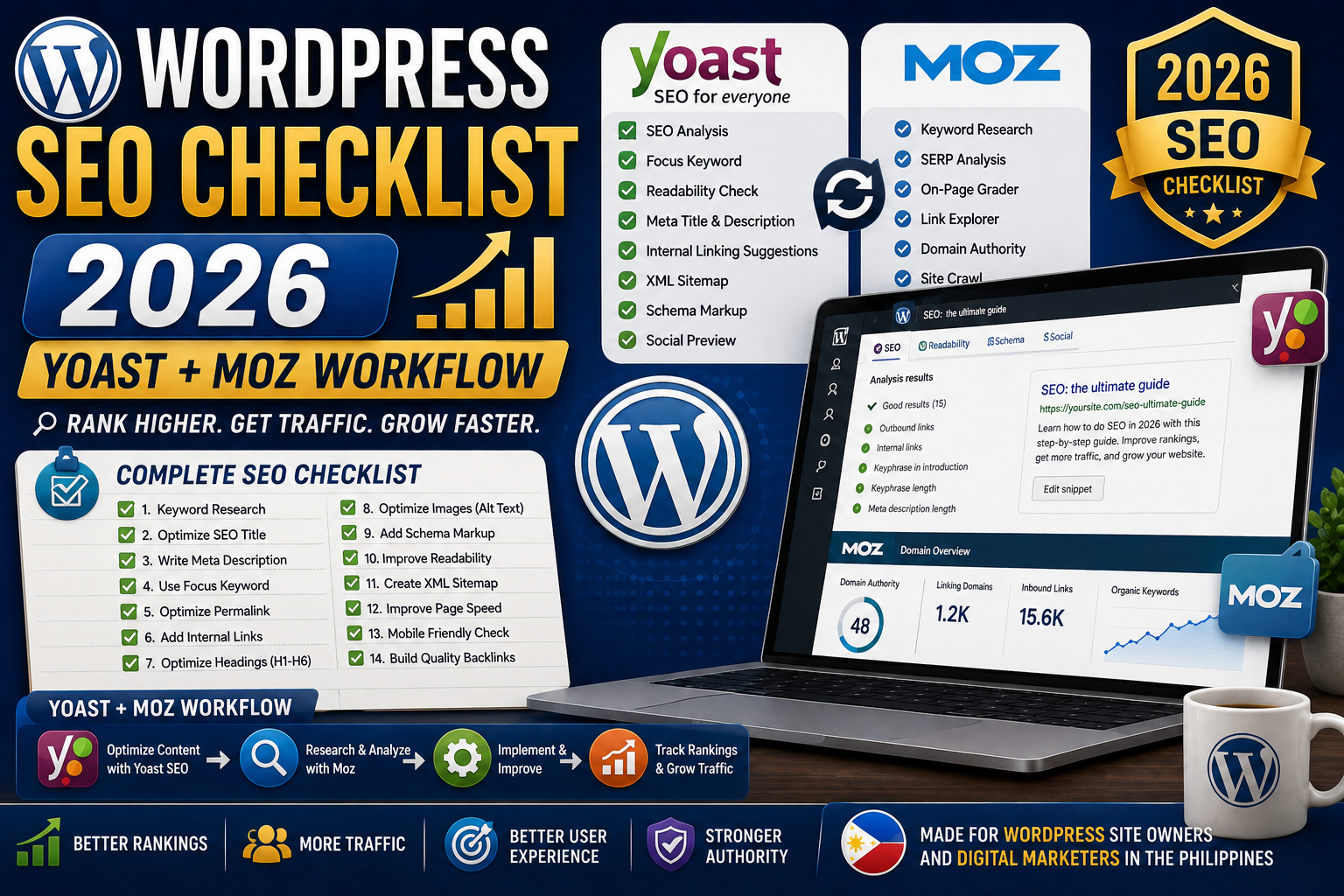
How to Install Yoast SEO in WordPress (Step by Step) - Method 1: Install Yoast SEO Automatically from Yoast.com.
The fastest route for most users is the automatic installer hosted on Yoast's website. This method connects directly to your WordPress site and completes the installation without you touching the dashboard.
- Go to the automatic Yoast SEO installer on yoast.com.
- Enter your site URL in the field provided.
- Tick the box to accept the Terms of Service.
- Click Install Yoast SEO.
- Authorize the application when prompted, then click Yes, I approve of this connection.
- Wait for the installation to complete. This may take a minute or two.
If the automatic installer fails—often due to security plugins, hosting restrictions, or custom login URLs—use one of the manual methods below.
Method 2: Install Yoast SEO Through the WordPress Plugin Directory
How to Install Yoast SEO in WordPress (Step by Step) - Method 2: Install Yoast SEO Through the WordPress Plugin Directory.
This is the most common installation path and works on any standard WordPress setup.
- Log in to your WordPress admin dashboard.
- Navigate to Plugins → Add New Plugin in the left sidebar.
- In the search bar, type "Yoast SEO".
- Locate the plugin by Team Yoast in the results.
- Click Install Now.
- Once the button changes, click Activate.
After activation, a new Yoast SEO menu item appears in your dashboard sidebar. The plugin is now active, but you still need to run the configuration wizard to get the most out of it.
Method 3: Install Yoast SEO via Manual ZIP Upload
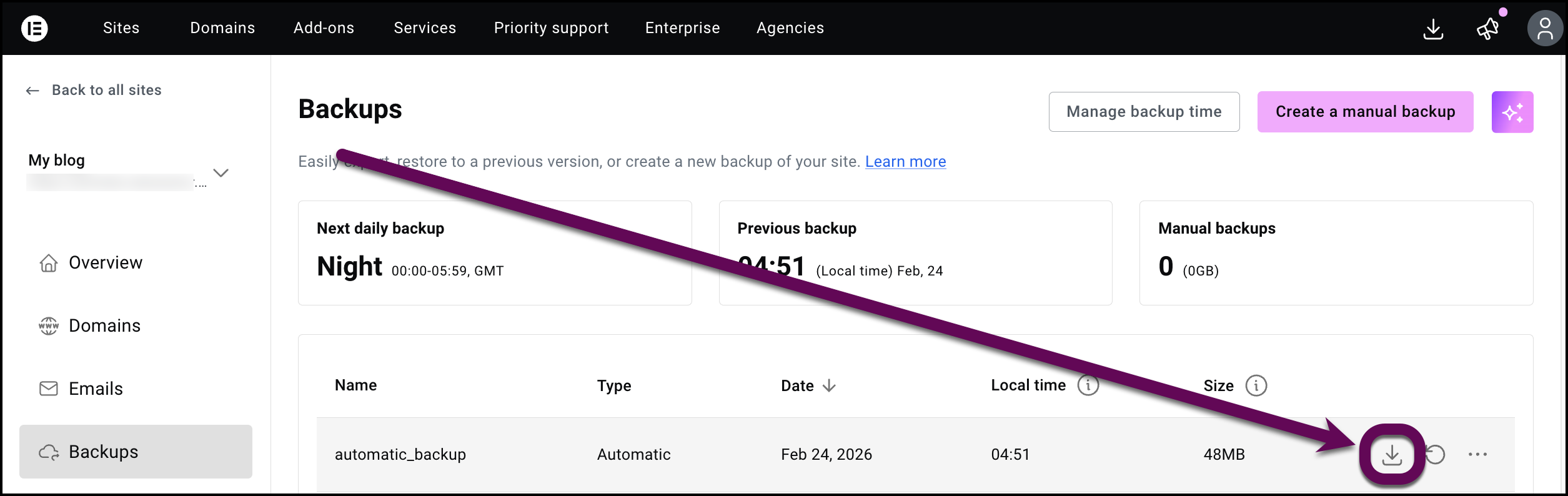
How to Install Yoast SEO in WordPress (Step by Step) - Method 3: Install Yoast SEO via Manual ZIP Upload.
If your hosting environment blocks automatic installations, or you are working on a local development site, manual upload is the reliable fallback.
- Download the Yoast SEO ZIP file from the WordPress plugin repository.
- In your WordPress dashboard, go to Plugins → Add New Plugin.
- Click Upload Plugin at the top of the screen.
- Click Choose File and select the ZIP file you downloaded.
- Click Install Now.
- After installation completes, click Activate Plugin.
This method gives you full control over the installation file and is useful for staging environments or when you need to install a specific version.
What to Do Immediately After Installing Yoast SEO
Installation is only the first step. Configuration determines whether the plugin actually improves your search visibility.
Run the Configuration Wizard
Yoast SEO includes a step-by-step setup wizard that appears after activation. It asks about:
- Whether your site represents an organization or a person
- Your organization name and logo (for schema markup)
- Whether you want to optimize for search engines
- Your preferred post visibility settings
Completing the wizard ensures Yoast SEO generates accurate structured data from day one.
Review Your XML Sitemap
Yoast SEO automatically generates an XML sitemap at /sitemap_index.xml. Verify that it loads correctly and submit it to Google Search Console if you have not already. This helps search engines discover every page, post, and archive on your site without manual work.
Set Your Default Meta Titles and Descriptions
Navigate to Yoast SEO → Settings → Content Types and review the default templates for posts and pages. These templates control how your content appears in search results when you do not set custom metadata on individual pages.
Connect Search Console
If you use Google Site Kit or have Search Console access, link your account to see keyword performance, indexing status, and click data directly in your WordPress dashboard.
Common Yoast SEO Installation Errors and Fixes
"Destination folder already exists"
This error means a previous Yoast SEO installation left files behind. Use FTP or your hosting file manager to delete the wp-content/plugins/wordpress-seo folder, then retry the installation.
"The package could not be installed"
This typically happens when the ZIP file is corrupted or incomplete. Download a fresh copy from WordPress.org and try again. If the problem persists, your hosting provider may have upload size limits—contact them to increase the PHP upload_max_filesize value.
White screen after activation
A white screen usually indicates a PHP memory limit issue. Increase the WP_MEMORY_LIMIT in your wp-config.php file to at least 128MB, or contact your hosting provider.
Plugin conflicts
If Yoast SEO installs but behaves unexpectedly, temporarily deactivate other SEO plugins. Running two SEO plugins simultaneously causes conflicting meta tags, duplicate sitemaps, and unpredictable behavior. Yoast SEO includes migration tools for Rank Math, All in One SEO, and SEOPress, so you can safely switch without losing data.
Yoast SEO vs. Installing an Autonomous Content Platform
Yoast SEO excels at on-page optimization and technical SEO foundations. It tells you what to fix before you publish—keyphrase placement, readability, meta descriptions, and schema. But it does not write content for you.
If your bottleneck is content production rather than optimization, you may need a different kind of tool. SEO automation platforms can handle topic research, drafting, and publishing workflows at scale. For teams that want to combine technical SEO with continuous content output, an autonomous content engine like AgentBooks learns your product, maps your market, and publishes brand-consistent articles on a schedule—while a plugin like Yoast SEO ensures each piece meets on-page standards.
This is not an either-or decision. Many sites run Yoast SEO for technical foundations and use a separate content platform for production. The right combination depends on whether your growth stall is optimization-related, content-volume-related, or both.
Related reading
- Autoblogging.ai Lifetime Deal: Does It Exist? - Autoblogging.ai does not offer a lifetime deal. Compare real alternatives, pricing, and what to look for before you buy any AI autoblogging license.
Sources and further reading
- Yoast SEO - Yoast SEO helps you improve your site’s content and structure with built-in tools for keywords, schema and readability, no expertise required.
Frequently Asked Questions About Installing Yoast SEO
Is Yoast SEO free to install?
Yes. The core Yoast SEO plugin is free and includes XML sitemaps, schema markup, readability analysis, and basic SEO checks. Yoast SEO Premium adds AI tools, internal linking suggestions, redirect management, and more, but the free version is fully functional for most sites.
Can I install Yoast SEO on WordPress.com?
Yoast SEO is available on WordPress.com Business and Commerce plans. Free and Personal plans do not allow third-party plugin installation. On self-hosted WordPress.org sites, you can install Yoast SEO without restrictions.
How long does Yoast SEO installation take?
The installation itself takes under two minutes using any method. The configuration wizard adds another five to ten minutes. Full optimization of your existing content takes longer, but the plugin starts working immediately after activation.
Do I need coding knowledge to install Yoast SEO?
No. All three installation methods are point-and-click. The plugin automatically handles technical SEO elements like schema markup and canonical URLs without requiring any code.
What happens to my existing SEO settings if I switch from another plugin?
Yoast SEO includes import tools for Rank Math, All in One SEO, and SEOPress. The migration transfers your meta titles, descriptions, focus keywords, and other settings. Run the import immediately after activation to avoid data conflicts.
Can I install Yoast SEO on multiple sites?
Yes. The free plugin can be installed on unlimited sites. Yoast SEO Premium licenses are per-site, with multi-site discounts available for agencies and developers.
Conclusion: Install Yoast SEO, Then Configure It Properly
Installing Yoast SEO is straightforward—choose the automatic installer for speed, the plugin directory for simplicity, or manual ZIP upload for full control. But installation alone does not improve your rankings. Run the configuration wizard, review your sitemap and meta templates, and start applying the plugin's real-time feedback to every piece of content you publish.
For sites that need both technical optimization and consistent content output, pairing Yoast SEO with a content automation workflow creates a complete system: the plugin handles on-page SEO, while the content engine keeps your publishing calendar full.