
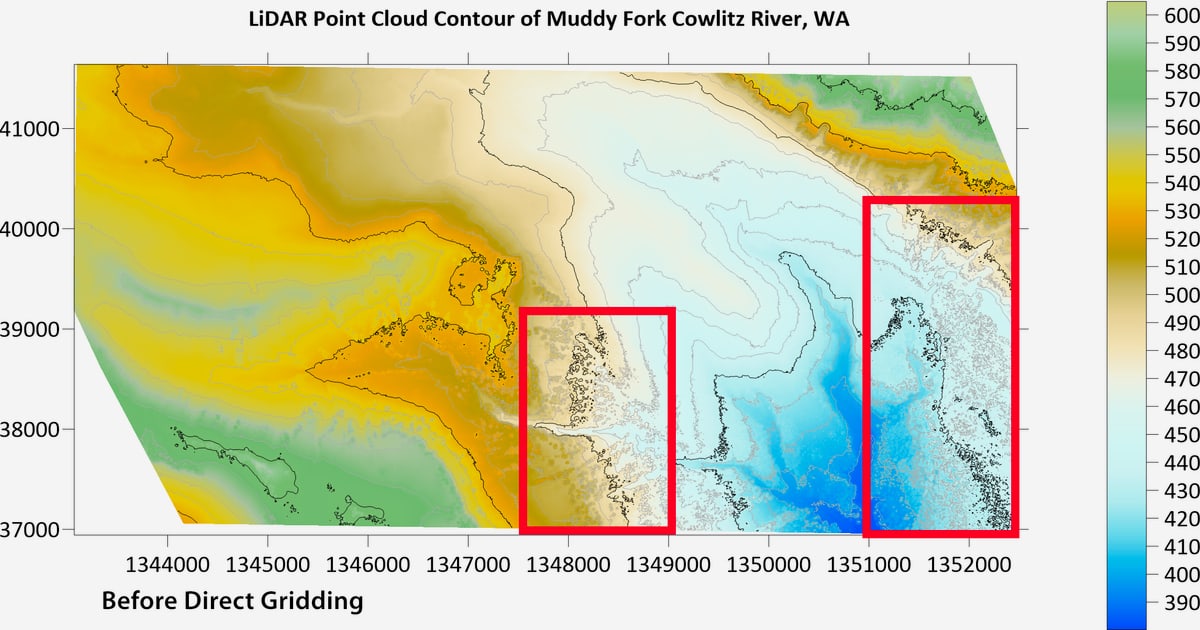
How to Use Surfer: A Beginner's Guide to Mapping Data
Surfer by Golden Software is a powerful tool for creating contour maps, 3D surfaces, and other visualizations from XYZ data. If you're new to the software, this guide will walk you through the essential steps to get started. You'll learn how to import data, generate a grid, customize your map, and share your results. By the end, you'll have the skills to create professional-grade maps for groundwater, geology, or any spatial data project.
Getting Started with Surfer

How to Use Surfer: A Beginner's Guide to Mapping Data - Getting Started with Surfer.
Before diving into map creation, take a moment to familiarize yourself with the Surfer interface. When you open the software, you'll see a ribbon-based menu similar to other Windows applications. The Home tab contains the main tools for creating layers and maps. You can start by creating a new plot window, which will be your canvas.
If you're completely new, consider completing the built-in tutorial. It takes about an hour and covers the entire workflow from data import to export. You can find sample files in the Surfer Samples folder (typically at C:\Program Files\Golden Software\Surfer\Samples).
Step 1: Import and Prepare Your Data
Surfer works best with data organized in columns: X (longitude or easting), Y (latitude or northing), and Z (the value you want to map, such as elevation or concentration). Your data can be in a CSV, Excel, or text file.
To import data:
- Go to Home | Data | Import.
- Select your file and ensure the correct columns are assigned to X, Y, and Z.
- Surfer will display the data as a scatter plot or you can proceed directly to gridding.
Best practice: Check for duplicate points, outliers, or missing values before gridding. Surfer offers data filtering tools under the Data tab to help clean your dataset.
Step 2: Create a Grid File
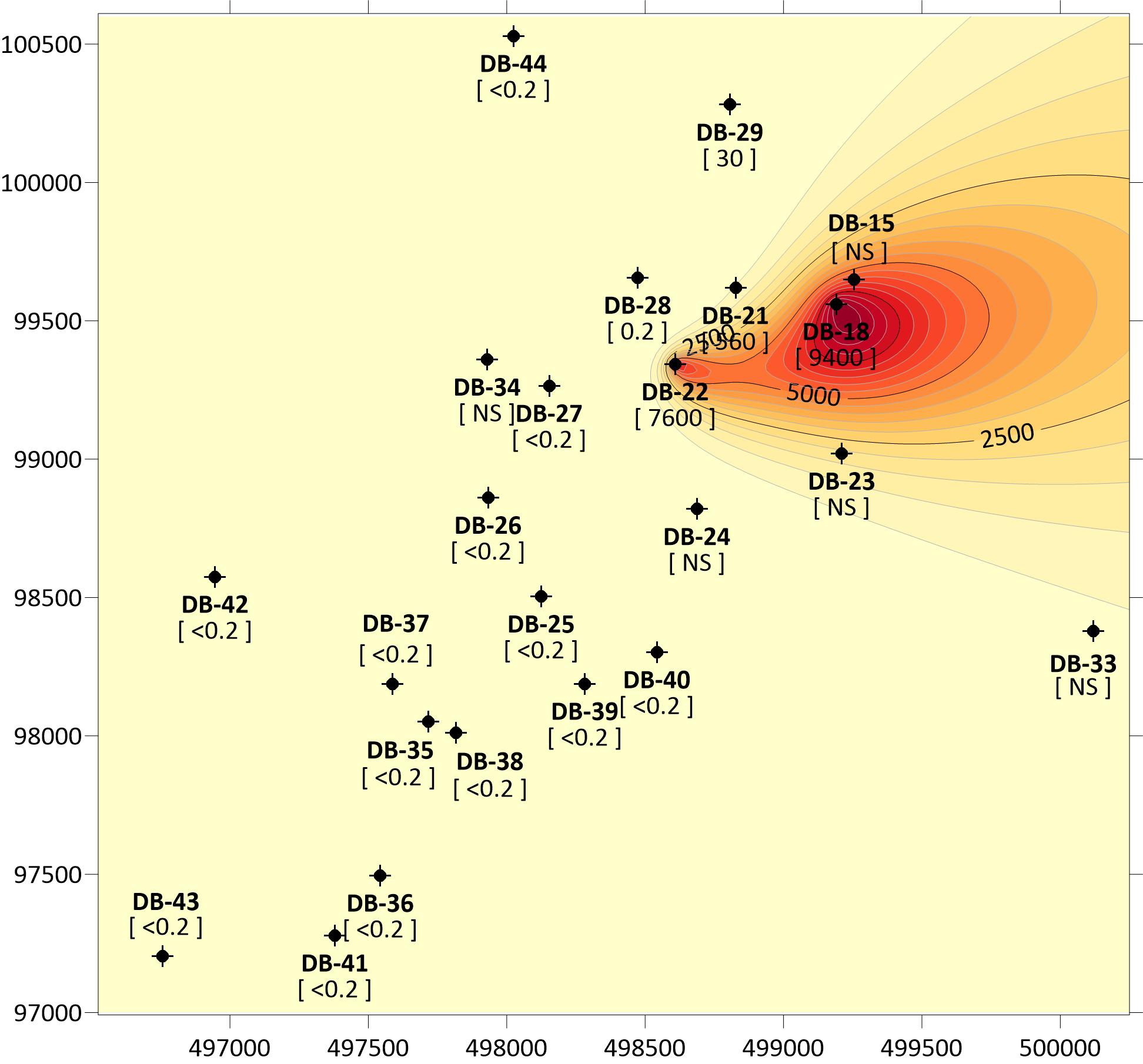
How to Use Surfer: A Beginner's Guide to Mapping Data - Step 2: Create a Grid File.
Gridding interpolates your scattered data points onto a regular grid, which is necessary for contouring and 3D surface maps. Surfer offers several gridding methods, each suited to different data types.
- Kriging: Best for smooth, continuous data like groundwater levels.
- Inverse Distance to a Power: Good for general-purpose interpolation.
- Natural Neighbor: Useful for irregularly spaced data.
To grid your data:
- Select your data layer.
- Click Home | Grid Data.
- Choose a gridding method and adjust parameters like grid spacing.
- Click OK to generate the grid file.
Step 3: Create a Contour Map
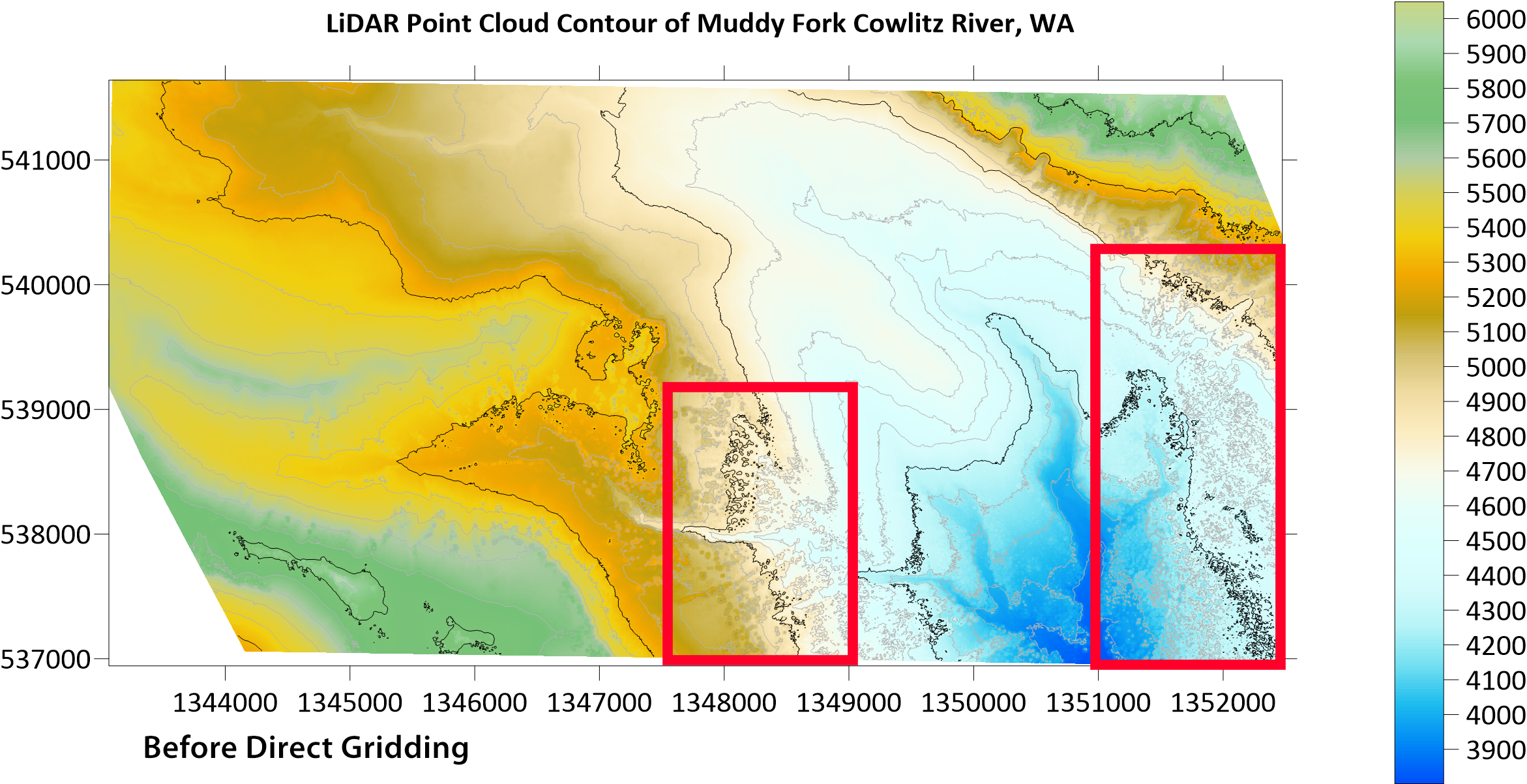
How to Use Surfer: A Beginner's Guide to Mapping Data - Step 3: Create a Contour Map.
Once you have a grid file, you can create a contour map:
- Go to Home | Create Layer | Contour.
- Select your grid file.
- Surfer will generate a default contour map. You can customize the contour levels, colors, and line styles in the Properties window.
For a more detailed walkthrough, refer to the official Surfer tutorial.
Step 4: Customize Your Map
Surfer offers extensive customization options to make your map informative and visually appealing.
Adjust Map Properties
- Levels: Change the number of contour lines or define custom intervals.
- Colors: Apply a color gradient to represent different values.
- Line Styles: Modify line thickness and dash patterns.
Add Context Layers
Enhance your map by adding:
- Base maps: Import a base map (e.g., a site boundary) via Home | Create Layer | Base.
- Legends: Add a legend to explain the color scale.
- Scale bars: Insert a scale bar for distance reference.
Change Map Coordinates
If your data is in meters but you need feet, use Map | Coordinate System to reproject or convert units.
Step 5: View in 3D
Surfer's 3D view lets you explore your data from any angle. To create a 3D surface map:
- Go to Home | Create Layer | 3D Surface.
- Select your grid file.
- Use the 3D View controls to rotate, zoom, and pan.
You can also add 3D vector points to show data locations.
Step 6: Export and Share
When your map is ready, you can export it in various formats:
- Images: PNG, JPG, TIFF for reports or presentations.
- Vector formats: PDF, SVG for scalable graphics.
- Grid files: Save as Surfer grid (.grd) or other formats for further analysis.
To export: File | Export. Choose your format and resolution.
Practical Example: Groundwater Contour Map
Let's say you have well data with water levels. After importing and gridding, you create a contour map showing the water table. You customize the contours to show 5-foot intervals, add a legend, and overlay a site boundary. Finally, you export the map as a PDF for a report. This is the exact workflow covered in the Surfer tutorial.
Common Pitfalls and Tips
- Data quality matters: Outliers can distort your grid. Use Surfer's data filtering tools.
- Choose the right gridding method: Kriging is not always best; experiment with others.
- Keep your project organized: Save your project file (.srf) to retain all layers and settings.
- Use templates: Save a map as a template to reuse settings for future projects.
Surfer vs. Other Mapping Tools
Surfer is known for its ease of use and powerful interpolation methods. It's particularly strong for geospatial data visualization. However, if you need to automate content creation for your website, tools like AgentBooks can help you publish SEO-optimized articles at scale. But for mapping, Surfer remains a top choice.
Related reading
- Keyword Research: A Practical Step-by-Step Guide - Learn how to do keyword research step by step: find seed keywords, analyze search volume, difficulty, and intent, then map keywords to pages.
- Autoblogging.ai Free Trial: What You Get in 2025 - Autoblogging.ai's free trial gives you 10 free credits every month, no credit card required. See what those credits cover, what they don't, and how to test it.
- How to Use Autoblogging.ai: Setup, Modes, and Workflow - A step-by-step guide to using Autoblogging.ai: account setup, Quick Mode, Godlike Mode, bulk generation, publishing, credits, and when to switch.
Sources and further reading
- Surfer Introduction Training Video - YouTube - Enjoy the videos and music you love, upload original content, and share it all with friends, family, and the world on YouTube.
- Surfer by Golden Software Tutorial for Beginners (Introduction Training) - In this beginner tutorial and training video, we show you how to install and use Surfer by Golden CRM software. We show you how to create an account and get...
FAQ
How long does it take to learn Surfer?
The built-in tutorial takes about an hour. With practice, you can become proficient in a few days.
Can I use Surfer for free?
Golden Software offers a free trial. Visit their website for details.
What file formats does Surfer support?
Surfer supports CSV, Excel, text, and many GIS formats for import. Export options include images, PDFs, and grid files.
Do I need programming skills to use Surfer?
No, Surfer is designed for point-and-click use. However, scripting is available for advanced automation.
How do I update Surfer?
Check for updates under File | Help | Check for Updates.
Conclusion
Surfer is a robust tool for creating contour maps and 3D visualizations from spatial data. By following the steps outlined in this guide, you can go from raw data to a polished map in less than an hour. Remember to start with clean data, choose the appropriate gridding method, and customize your map to effectively communicate your findings. For more detailed instructions, refer to the official tutorial and training videos. With practice, you'll be able to leverage Surfer's full potential for your projects.