
How to Use Yoast SEO: A Complete WordPress Setup Guide
Yoast SEO is one of the most widely used WordPress plugins for search optimization, with millions of active installations. But installing it is only the first step. The real value comes from configuring it correctly and using its on-page tools consistently across every post and page.
This guide walks you through the entire workflow: first-time configuration, the Yoast SEO sidebar and meta box, focus keyphrases, readability checks, schema settings, crawl optimization, and the AI-powered features available in newer plans. By the end, you will know exactly how to use Yoast SEO to improve your WordPress site's visibility in both traditional search results and AI-generated answers.
First-Time Configuration: Setting the Foundation
How to Use Yoast SEO: A Complete WordPress Setup Guide - First-Time Configuration: Setting the Foundation.
After installing Yoast SEO, you should see a prompt to run the first-time configuration wizard. This guided setup is the fastest way to establish the basic signals search engines need to understand your site. You can also access it later under Yoast SEO > General > First-time configuration.
Site Representation
Choose whether your site represents a person or an organization. This decision determines how your brand appears in search results and knowledge panels. For an organization, add the company name and upload a square logo at least 112x112 pixels. For a personal site, select the relevant user profile.
This setting matters beyond classic Google results. AI-powered search tools such as ChatGPT and Google AI Overviews increasingly rely on structured brand information to reference websites accurately. A clear site representation gives those systems a better chance of citing your brand correctly.
Search Engine Visibility
Decide whether search engines should index your site. For most live websites, indexing should be enabled. If you are still building the site on a staging environment or want to keep it private temporarily, you can discourage indexing here and reverse it later.
Connecting Google Search Console
Yoast can connect directly to Google Search Console. Click Get Google Authorization Code, sign in with your Google account, and paste the code back into Yoast. This integration surfaces keyword data, page performance, and technical errors inside your WordPress dashboard, so you do not have to switch between tools.
Site Titles, Taglines, and Social Profiles
Set your site title and tagline, which appear in search snippets and social shares. Then add links to your active social profiles. Yoast uses this information to build structured data that connects your website to your social presence, which can enhance how your brand appears in search results.
Content Type Optimization
Choose which content types should appear in search results. For most sites, posts and pages should be visible, while media attachments should be hidden to avoid thin image pages competing in the index. If you run a WooCommerce store, Yoast's AI+ package adds product-specific optimization such as automated product schema and AI-generated SEO titles.
Using the Yoast SEO Sidebar and Meta Box
How to Use Yoast SEO: A Complete WordPress Setup Guide - Using the Yoast SEO Sidebar and Meta Box.
The Yoast SEO sidebar is where you will spend most of your time on a day-to-day basis. In the WordPress block editor, click the Yoast icon in the top-right corner to open it. In the classic editor, the same tools appear in the meta box below the content area.
Focus Keyphrase
The focus keyphrase is the primary search term you want a page to rank for. Enter it in the designated field, and Yoast analyzes your content against that term. It checks whether the keyphrase appears in the title, first paragraph, headings, meta description, URL slug, and image alt text.
One important clarification: entering a focus keyphrase does not tell Google to rank the page for that term. It only activates Yoast's internal analysis. The feedback is a checklist, not a ranking signal. Use it as a reminder to keep your content focused, but do not treat a green light as proof of optimization.
If you use Yoast SEO Premium, you can add multiple related keyphrases for a single post, which helps when a page targets several variations of the same topic.
SEO Title, Slug, and Meta Description
The Google preview section lets you edit the SEO title, slug, and meta description for each post. The live preview updates as you type, and Yoast flags titles or descriptions that are too long or too short. A well-written snippet can improve click-through rates even before rankings change.
SEO Analysis
Expand the SEO analysis section to see a checklist of on-page factors: keyphrase distribution, outbound links, internal links, image alt attributes, and meta description length. Each item receives a pass or fail indicator, and the overall score appears as a green, orange, or red traffic light.
Readability Analysis
The readability tab evaluates your content from a human perspective. It checks sentence length, paragraph length, passive voice usage, transition words, and subheading distribution. These suggestions are not perfect, and you do not need a perfect score on every post. But they are a useful guide for making content easier to scan and understand.
Cornerstone Content
Yoast lets you mark your most important posts as cornerstone content. These are the comprehensive articles you want to rank highest. Marking a post as cornerstone changes how Yoast evaluates internal linking and content depth, and it helps you filter your post list to prioritize updates.
Advanced Tab
The Advanced tab controls indexing at the individual page level. You can prevent a specific post from being indexed, stop search engines from following its links, set a canonical URL to resolve duplicate content, and adjust breadcrumb appearance. Most users will rarely touch these settings, but they are valuable when needed.
Social Tab
The Social tab lets you override how a page appears when shared on Facebook or X. By default, Yoast generates social previews from your SEO title and featured image. If you want a different image or headline for a specific social platform, you can set it here manually.
Advanced Yoast SEO Settings
How to Use Yoast SEO: A Complete WordPress Setup Guide - Advanced Yoast SEO Settings.
Once the basics are in place, a few deeper settings can improve how search engines crawl and understand your site.
Crawl Optimization
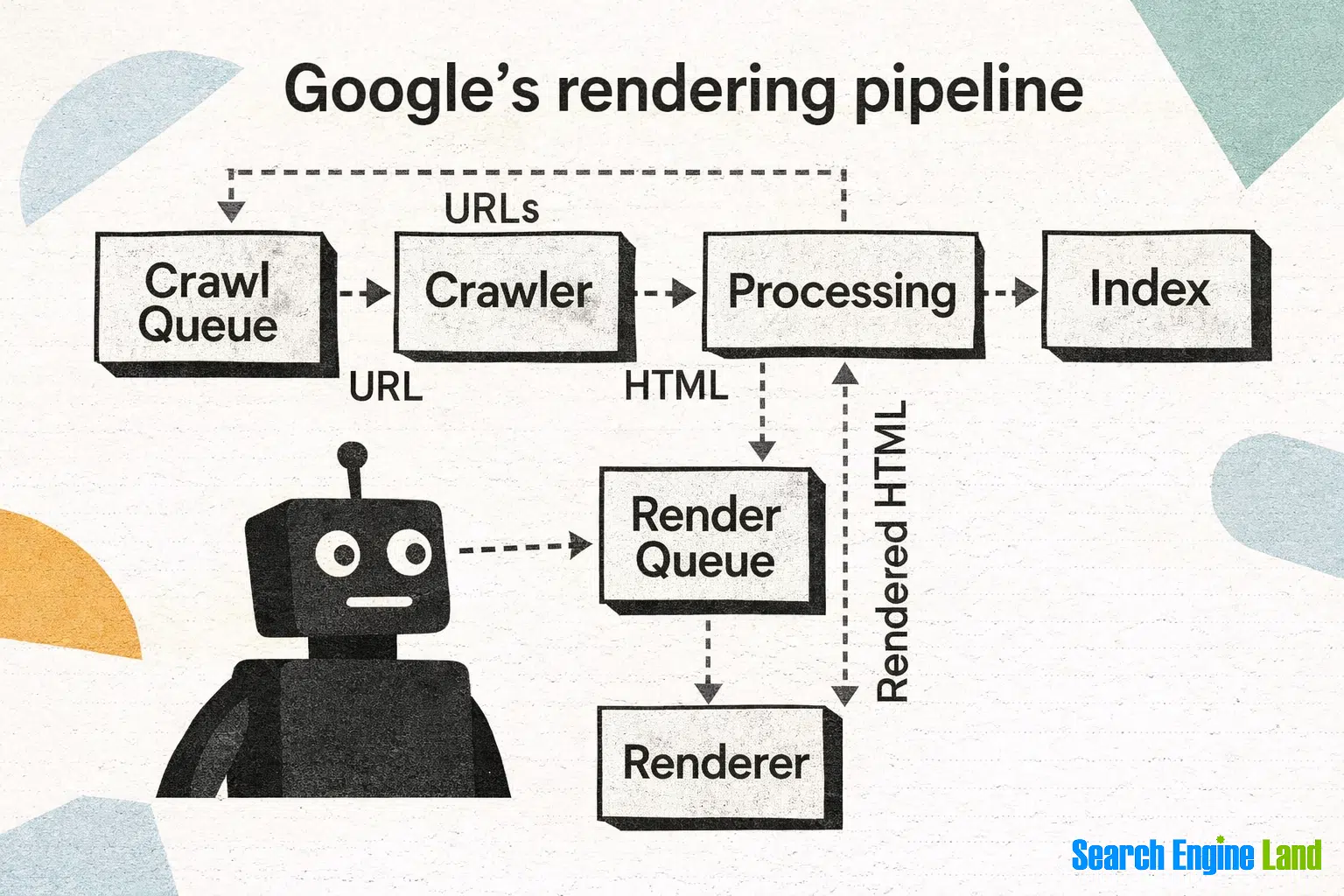
Navigate to Yoast SEO > Settings > Crawl optimization. This section cleans up unnecessary code, optimizes your robots.txt file, and removes elements that waste crawl budget. For most beginners, the default settings are appropriate. The main benefit is a cleaner technical footprint without manual configuration.
Schema Settings
Yoast automatically generates schema markup under Yoast SEO > Settings > Schema. This includes breadcrumbs, site structure, and a schema graph that connects your content, organization, and brand identity. Proper schema markup helps your site qualify for rich results such as star ratings, FAQs, and enhanced knowledge panel displays.
AI-Powered Features
Yoast SEO Premium and the AI+ package include several AI tools integrated directly into the editing sidebar:
- AI Generate creates optimized titles and meta descriptions based on your content.
- AI Optimize provides real-time suggestions for improving content.
- AI Summarize generates bullet-point summaries for long posts.
These features reduce the manual work of writing snippets and identifying content gaps, but they work best when combined with a clear focus keyphrase and a well-structured draft.
A Practical Yoast SEO Workflow for Every Post

How to Use Yoast SEO: A Complete WordPress Setup Guide - A Practical Yoast SEO Workflow for Every Post.
Here is a repeatable process you can follow for each new post or page:
- Choose a focus keyphrase before writing. Pick one specific term with realistic ranking potential based on your site's authority.
- Enter the keyphrase in Yoast as a reminder to keep the content on topic.
- Write the draft naturally, then review the SEO analysis checklist for missing elements such as image alt text or an absent meta description.
- Run the readability check and address the most impactful issues: long paragraphs, passive voice, and missing subheadings.
- Edit the SEO title and meta description in the Google preview until they fit within the recommended length and include the keyphrase.
- Set the slug to a short, descriptive URL.
- Mark cornerstone content only for your most important pages.
- Publish and monitor performance through the Google Search Console integration.
Yoast SEO vs. Automated Content Platforms
Yoast SEO is an on-page optimization tool. It analyzes content you have already written and helps you improve it. It does not research topics, generate drafts, or publish posts on a schedule.
For teams that struggle with content production itself, a different type of tool can fill that gap. Platforms like AgentBooks operate as an autonomous content engine: they learn your product, research organic search results, plan topics, and publish brand-consistent content continuously. Where Yoast helps you optimize a page you are editing, AgentBooks handles the upstream work of producing that page in the first place.
These tools are complementary rather than competing. A common workflow is to use an AI content platform to generate topic research and drafts, then run the final version through Yoast SEO for on-page checks before publishing. If your bottleneck is manual drafting and topic ideation, comparing AgentBooks features can clarify whether an automated content engine fits your workflow. If your bottleneck is snippet optimization and readability, Yoast alone may be sufficient.
Yoast SEO Pricing: Which Plan Do You Need?
The free version of Yoast SEO covers the core workflow: focus keyphrase analysis, readability checks, snippet previews, basic schema, and Search Console integration. For many small sites, that is enough.
Premium adds multiple keyphrases, internal linking suggestions, redirect management, and more advanced analysis. The AI+ package layers in AI generation tools and WooCommerce-specific features. Before upgrading, review Yoast SEO pricing to understand what each tier includes and whether the renewal cost justifies the added features for your site size.
Related reading
- 9 Best Autoblogging AI Alternatives for 2026 - Looking for an Autoblogging AI alternative? Compare 9 tested tools on content quality, pricing, SEO features, and publishing automation to find your best fit.
- Webflow Integration: Connect Your Site to the Right Tools - Learn how Webflow integrations work, which native apps and automation tools to use, and how to connect your CMS, forms, and ecommerce to your marketing stack.
- Yoast SEO Pricing: Free vs Premium vs AI+ Costs - A practical breakdown of Yoast SEO pricing: free vs Premium vs AI+ plans, what each tier includes, renewal costs, and which one fits your site.
Sources and further reading
- The beginner’s guide to Yoast SEO - Beginner's guide to Yoast SEO simplifies WordPress optimization. Learn to configure Yoast SEO for better results today.
- Complete Yoast Seo Tutorial 2025 - WordPress SEO for Beginners - Free Domain With Siteground: https://www.darrelwilson.com/sitegroundIn this tutorial, you'll learn everything you need to know about Yoast SEO for beginners....
- How To Use Yoast SEO on WordPress: Complete Tutorial - Not sure how to use the Yoast SEO plugin? In this guide we share everything you need to know about using Yoast to boost your WordPress site's SEO.
Frequently Asked Questions
Is Yoast SEO enough to rank on Google?
No single plugin guarantees rankings. Yoast SEO helps you implement on-page best practices, but rankings also depend on content quality, backlinks, site speed, and competition. Treat Yoast as a checklist and feedback tool, not a ranking engine.
What is the difference between the focus keyphrase and a meta description?
The focus keyphrase is the search term you want the page to rank for. The meta description is the summary text that appears under your title in search results. They serve different purposes, but both should align with the page's topic.
Do I need to get a green light on every Yoast check?
No. The green light indicates that Yoast's specific criteria are met, but some checks are less important than others. For example, a slightly long sentence matters less than a missing meta description. Prioritize the checks that affect user experience and click-through rates.
Can I use Yoast SEO on a non-WordPress site?
No. Yoast SEO is a WordPress plugin. If your site runs on another platform, you will need a different SEO tool or a manual approach to on-page optimization.
How does Yoast SEO help with AI search results?
Yoast's schema markup and site representation settings help AI systems understand your brand and content structure. The AI+ package also includes brand tracking features that monitor how your site appears in AI-generated answers.
What should I do after configuring Yoast SEO?
Start with a content audit. Run your most important existing pages through the Yoast analysis, fix the highest-impact issues, and then apply the workflow above to every new post. Connect Google Search Console and monitor performance over several weeks.
Conclusion
Yoast SEO is a powerful on-page optimization tool, but its value depends on consistent use. The first-time configuration establishes your site's identity and technical signals. The sidebar and meta box provide real-time feedback on every post. The advanced settings handle schema, crawl efficiency, and AI-assisted optimization.
Start with the configuration wizard, master the focus keyphrase workflow, and build a repeatable process for each new page. If content production itself is your bottleneck, consider pairing Yoast with an automated content platform that handles topic research and drafting, then use Yoast for the final optimization pass. Together, they cover both sides of the SEO equation: creating useful content and making sure search engines can find it.