
Yoast SEO Login: How to Access Your MyYoast Account
If you use Yoast SEO for WordPress, Shopify, or WooCommerce, the MyYoast portal is where your products, subscriptions, courses, and site connections live. Whether you are signing in for the first time, switching devices, or troubleshooting a failed login, knowing exactly how the Yoast SEO login process works saves time and prevents unnecessary frustration.
This guide walks through the official login steps, common problems and fixes, and how your MyYoast account connects to the actual Yoast SEO plugin on your website.
What Is MyYoast?
Yoast SEO Login: Step-by-Step Access to MyYoast - What Is MyYoast?.
MyYoast is Yoast's customer portal. It is separate from your WordPress admin dashboard, which is a common point of confusion for new users.
Inside MyYoast, you can:
- View and manage your Yoast SEO subscriptions, including Premium, WooCommerce SEO, and AI+ plans
- Download purchased plugins and receive license keys
- Connect your account to websites for automatic updates
- Access Yoast SEO Academy courses, both free and premium
- Contact support and manage billing details
- Update your profile, email address, and password
The portal is available at my.yoast.com, and the login page is the entry point for everything listed above.
Yoast SEO Login: Step-by-Step Instructions
Yoast's official help documentation outlines a simple four-step process. Here is the expanded version with practical context.
Step 1: Go to MyYoast
Open your browser and navigate to my.yoast.com. You can also click the "Login" or "MyYoast" link from the main Yoast website if you are already browsing yoast.com.
Step 2: Enter Your Email Address
Use the email address associated with your Yoast purchase. If you bought Yoast SEO Premium through the Yoast website, this is the email you used at checkout. If you were added as a team member on someone else's subscription, use the email that received the invitation.
Step 3: Enter Your Password
Type your password carefully. Passwords are case-sensitive, so check that Caps Lock is off if you are having trouble.
Step 4: Click Log In
Select the Log in button to enter your MyYoast dashboard. If your credentials are correct, you will land on your account overview page.
How MyYoast Login Differs from WordPress Login
Yoast SEO Login: Step-by-Step Access to MyYoast - How MyYoast Login Differs from WordPress Login.
One of the most frequent misunderstandings is that logging into Yoast SEO means logging into WordPress. These are two completely separate systems.
| Action | Where It Happens |
|---|---|
| Log in to your website's admin area | yoursite.com/wp-admin |
| Configure Yoast SEO plugin settings | Inside WordPress dashboard |
| Manage subscriptions, licenses, courses | MyYoast at my.yoast.com |
| Download plugin files and license keys | MyYoast |
Your WordPress login credentials are set when you install WordPress. Your MyYoast credentials are created when you purchase a Yoast product or register for a free account. They are not interchangeable.
Connecting MyYoast to Your WordPress Site
Yoast SEO Login: Step-by-Step Access to MyYoast - Connecting MyYoast to Your WordPress Site.
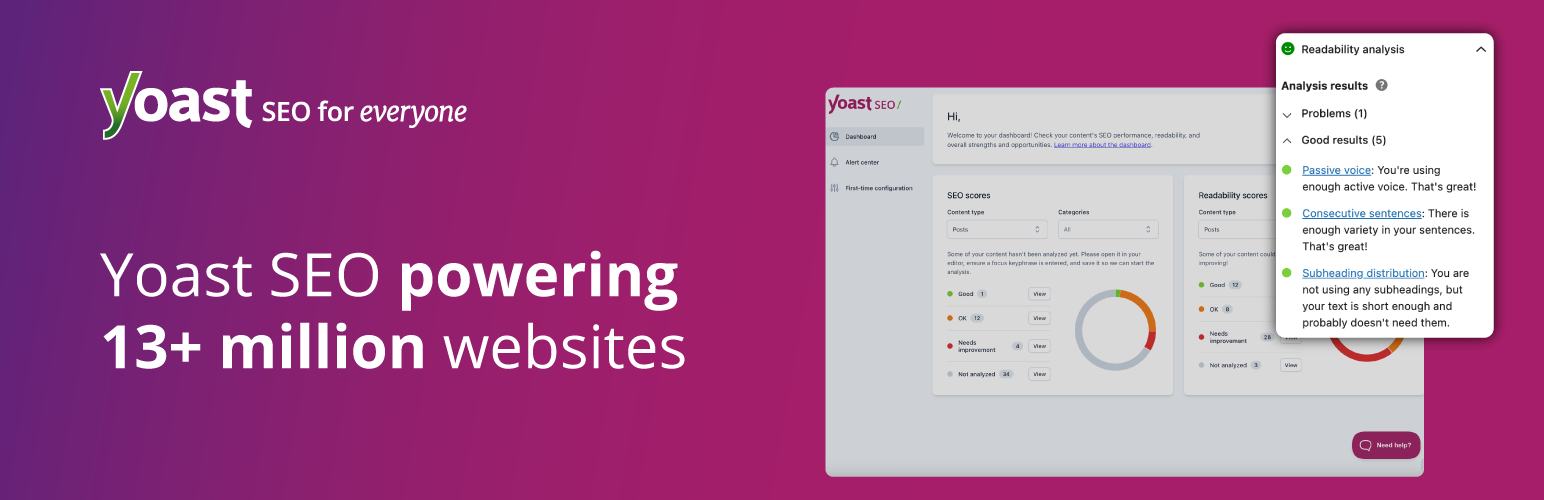
After logging into MyYoast, you will likely want to connect your account to your WordPress website. This enables automatic plugin updates and activates premium features.
The general workflow is:
- Log in to MyYoast
- Download the Yoast SEO Premium plugin file from your account
- Install and activate the plugin in WordPress
- Enter your license key or connect via the account linking option in the plugin settings
- Confirm the connection in your MyYoast dashboard
The exact steps can vary slightly depending on your plugin version, so refer to the MyYoast Quickstart Guide in your account for the most current instructions.
Common Yoast SEO Login Problems and Fixes
Login issues are usually straightforward to resolve. Here are the most common scenarios.
Forgotten Password
If you cannot remember your password:
- Go to the MyYoast login page
- Click the "Forgot password" or "Reset password" link
- Enter your account email address
- Check your inbox for a password reset email
- Follow the link to create a new password
If the reset email does not arrive within a few minutes, check your spam or junk folder. Some email providers filter automated messages aggressively.
Wrong Email Address
Many users have multiple email addresses and accidentally use the wrong one. If login fails, consider whether you may have purchased Yoast products under a different email. Search your inbox for old Yoast receipts or license emails to identify the correct address.
Account Not Found
If the system says no account exists for your email, you may not have created a MyYoast account yet. A purchase usually creates one automatically, but if you only used the free WordPress plugin, you may not have a MyYoast account at all. In that case, create a free account to access the SEO Academy and community resources.
Browser or Cookie Issues
Sometimes the login page fails to load properly or the session does not persist. Try:
- Clearing your browser cache and cookies for my.yoast.com
- Using a private or incognito window
- Trying a different browser
- Disabling browser extensions that block scripts or tracking
Two-Factor Authentication
If you enabled two-factor authentication on your MyYoast account, you will need your authenticator app or backup codes to complete login. If you lost access to your authenticator, use a backup code or contact Yoast support for account recovery.
What You Can Do After Logging In
Once you are inside MyYoast, several useful actions become available.
Manage Subscriptions
View your active Yoast SEO Premium, WooCommerce SEO, Shopify, or AI+ subscriptions. You can renew, upgrade, or cancel from this area.
Access Yoast SEO Academy
Premium subscribers get full access to Yoast SEO Academy, which includes structured courses on SEO fundamentals, WordPress optimization, and advanced tactics. Free users can access selected introductory courses.
Download Plugins and License Keys
If you need to reinstall Yoast SEO Premium on a new site or after a server migration, your downloads and license keys are stored in MyYoast.
Contact Support
Premium subscribers can reach Yoast's 24/7 support team through the portal. The support team can help with login recovery, plugin issues, and account-related questions.
Yoast SEO Login and Your Broader SEO Workflow
Logging into MyYoast is a small but essential part of a larger SEO operation. Once your plugin is connected and active, the real work begins: optimizing content, monitoring rankings, and scaling your publishing.
For teams that manage multiple sites or produce content at volume, manual SEO workflows can become a bottleneck. Tools that automate content research and production can complement the on-page optimization that Yoast provides. If you are evaluating options, a SERP analysis workflow helps you understand what Google currently rewards before you write, while an SEO content generator comparison can clarify which automation approach fits your team.
Yoast SEO Login FAQ
Is MyYoast the same as my WordPress login?
No. MyYoast is Yoast's customer portal for managing subscriptions, downloads, and courses. Your WordPress login is specific to your website and is managed through wp-admin.
Do I need a MyYoast account to use the free Yoast SEO plugin?
No. The free Yoast SEO plugin works without a MyYoast account. However, creating a free account gives you access to the Yoast SEO Academy and other resources.
How do I reset my MyYoast password?
Use the "Forgot password" link on the MyYoast login page. Enter your account email, then follow the instructions in the reset email. Check spam if the email does not arrive.
Can I log in to MyYoast on multiple devices?
Yes. Your MyYoast account works on any device with a browser. Just go to my.yoast.com and enter your credentials.
What if I bought Yoast SEO Premium but cannot log in?
First, confirm you are using the email address from your purchase receipt. If you still cannot access your account, use the password reset option or contact Yoast support through the help center.
Does Yoast SEO for Shopify use the same login?
Yes. Yoast SEO for Shopify is also managed through MyYoast, so the login process is identical regardless of which Yoast product you purchased.
Related reading
- AgentBooks vs Contentpen vs SEO Writing: Honest Comparison - Compare AgentBooks, Contentpen, and SEO Writing on autonomy, SERP research, publishing, AI visibility, pricing, and ideal users. Find the right AI content tool.
- AgentBooks vs ContentBot.ai vs QuickCreator: Honest Comparison - Compare AgentBooks, ContentBot.ai, and QuickCreator on workflows, autonomy, SEO research, pricing, and ideal users. Find the right AI content tool for your team.
Sources and further reading
- SEO for everyone - Yoast helps you with your website's search engine optimization, with our internationally loved software and our online SEO courses.
- How to log in to MyYoast - Read Yoast's help article and get answers on How to log in to MyYoast
Conclusion
The Yoast SEO login process is straightforward once you understand that MyYoast is a separate portal from your WordPress admin. Go to my.yoast.com, enter your account email and password, and click Log in. From there, you can manage subscriptions, download plugins, access courses, and contact support.
If you run into issues, the password reset flow and Yoast's help center resolve most problems quickly. And once you are logged in and connected, the larger opportunity is building a sustainable SEO workflow—whether that means optimizing manually with Yoast's real-time analysis or exploring automation tools that handle research and drafting at scale.