
Yoast SEO Tutorial: Setup, Settings & On-Page Optimization
Yoast SEO is one of the most widely used WordPress plugins, but installing it is the easy part. The real work is in the first-time configuration, the settings you rarely revisit, and the feedback you act on every time you publish a post. This tutorial walks through that full workflow in order, so you can go from a fresh install to a page that passes its own content checks.
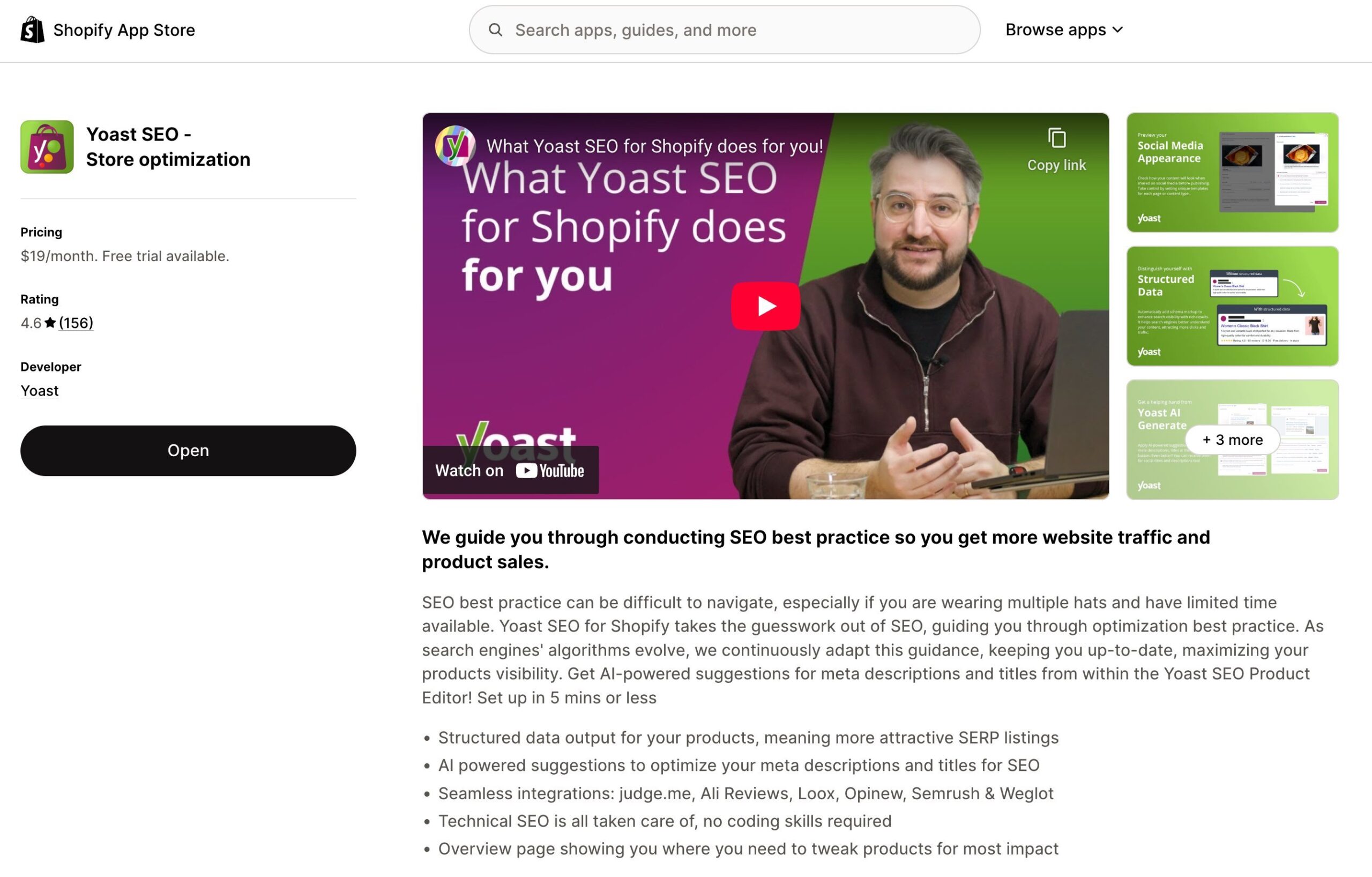
What Yoast SEO actually does
Yoast SEO Tutorial: Setup, Settings & On-Page Optimization - What Yoast SEO actually does.
Yoast is a WordPress plugin that handles three jobs:
- Technical output — it generates meta tags, canonical URLs, XML sitemaps, and Schema markup so search engines can read your site correctly.
- Editing feedback — it scores each post against a focus keyphrase and a readability checklist inside the editor.
- Site-level configuration — it stores your organization details, social profiles, and content type settings in one place.
It does not choose your keywords, write your content, or guarantee rankings. Treat it as a checklist and a plumbing layer, not a strategy.
Step 1: Install the plugin and run the configuration wizard
Yoast SEO Tutorial: Setup, Settings & On-Page Optimization - Step 1: Install the plugin and run the configuration wizard.
After activating Yoast SEO, go to Yoast SEO → General and open the First-time configuration tab. The wizard asks a short series of questions:
- Site representation — choose whether your site is a person or an organization, then add a name and logo. This feeds the Schema markup that helps search engines and AI assistants identify your brand.
- Search engine visibility — leave indexing on for a live site. Only disable it while the site is still under construction.
- Site basics — set your site title and tagline, which become the defaults for your homepage title and social shares.
- Social profiles — add your active profiles so they can be linked to your brand entity.
- Content types — show posts and pages in search results; hide media/attachment pages unless you specifically want image pages indexed.
If you are unsure about any answer, accept the default and move on. You can change everything later under Yoast SEO → Settings.
Step 2: Connect Google Search Console
Yoast SEO Tutorial: Setup, Settings & On-Page Optimization - Step 2: Connect Google Search Console.
Inside the same configuration flow, Yoast offers a Google Search Console connection. Click the authorization link, sign in with the Google account that owns your property, and paste the code back into Yoast.
The payoff is practical: you can see which queries bring impressions, which pages get clicks, and which URLs return errors — without leaving WordPress. If you skip this step, you lose the only feedback loop that tells you whether your optimization is working.
Step 3: Review the settings you will rarely touch again
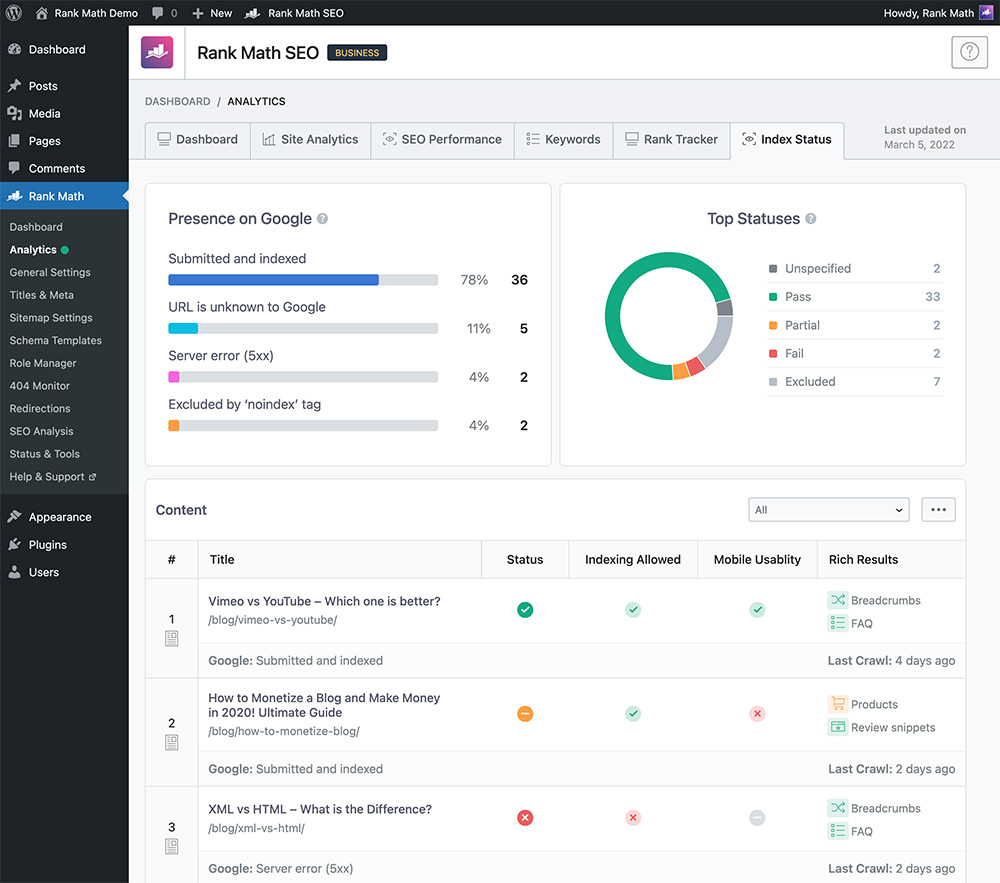
Yoast SEO Tutorial: Setup, Settings & On-Page Optimization - Step 3: Review the settings you will rarely touch again.
Once the wizard is done, three settings areas are worth a quick audit:
Crawl optimization
Under Yoast SEO → Settings → Crawl optimization, Yoast can clean up unnecessary code in your page source and manage your robots.txt rules. The defaults are sensible for most sites; only change them if you have a specific crawl problem.
Schema
Under Settings → Schema, Yoast builds a connected graph of your site, organization, and content. Breadcrumbs and FAQ blocks are configured here. If you want rich results, this is where they start.
Taxonomies and archives
Decide whether category and tag archives should be indexed. On small sites they often compete with your real content; on large sites they can be useful hubs. Pick one approach and stay consistent.
Step 4: Optimize a post with the Yoast sidebar
Open any post in the WordPress block editor and click the Yoast icon in the top-right corner to open the sidebar. This is where the day-to-day work happens.
Set a focus keyphrase
Enter the main phrase you want the page to rank for. Yoast then checks whether that phrase appears in your title, introduction, subheadings, URL, and body. Adding a keyphrase does not tell Google anything — it only tells Yoast what to evaluate. If you ignore the feedback, the field does nothing.
Read the SEO analysis
The SEO tab returns green, orange, or red bullets. Common fixes:
- The keyphrase is missing from the SEO title or meta description.
- The keyphrase appears too rarely, or too often.
- The page has no internal links or no outbound links.
- The slug is longer than necessary.
Work through the orange items that make editorial sense. Some suggestions — like forcing a keyphrase into every subheading — will make your writing worse, so use judgment.
Read the readability analysis
The readability tab checks sentence length, paragraph length, passive voice, transition words, and subheading distribution. These checks are about clarity, not rankings, but they usually improve both.
Write the SEO title and meta description
In the Google preview panel, edit the title and description that appear in search results. Keep the title near 60 characters and the description near 155, front-load the keyphrase, and write something a person would actually click.
Common mistakes to avoid
- Chasing all-green scores. A perfect Yoast score on a page nobody searches for is worthless. Keyword choice matters more than bullet color.
- Using the same keyphrase on every post. This creates internal competition. One primary phrase per page.
- Ignoring the preview. Check how the title and description look before publishing, not after.
- Treating Schema as automatic SEO. It improves how your page can be displayed, not how highly it ranks.
- Forgetting the content plan. Yoast evaluates pages you have already written. Deciding what to write is a separate problem — that is where a topic and keyword plan comes in, and where a platform like AgentBooks approaches it from the opposite direction: crawl the site, build a categorized keyword plan, then generate and publish articles against it. You can see how that workflow compares in this AgentBooks tutorial.
Yoast SEO vs. a content automation workflow
These tools solve different halves of the same problem, and most sites eventually need both.
| Need | Yoast SEO | Content automation platform |
|---|---|---|
| Technical meta tags and Schema | Yes, automatic | Handled at publish time |
| On-page feedback per post | Yes, in the editor | Editorial checks before publishing |
| Keyword and topic planning | No | Yes, mapped to your market |
| Writing and publishing at scale | No | Yes, with approval workflows |
| Works inside WordPress | Yes, natively | Publishes to a hosted site or your CMS |
If you publish a handful of posts a month, Yoast plus a spreadsheet is enough. If you are trying to build topical authority across dozens of related pages, the bottleneck moves from optimization to production, and that is the gap automation platforms target.
Related reading
- Enterprise Content Automation: A Practical 2026 Guide - Enterprise content automation explained: how AI pipelines capture, classify, govern, and publish content at scale, plus a decision framework and tool examples.
- Machinedramon Model Kit: Figure-Rise Standard Amplified Guide - Everything about the Machinedramon model kit: Figure-Rise Standard Amplified specs, build tips, posing challenges, pricing, and where to buy.
Sources and further reading
- The beginner’s guide to Yoast SEO - Beginner's guide to Yoast SEO simplifies WordPress optimization. Learn to configure Yoast SEO for better results today.
- Complete Yoast Seo Tutorial 2025 - WordPress SEO for Beginners - Free Domain With Siteground: https://www.darrelwilson.com/sitegroundIn this tutorial, you'll learn everything you need to know about Yoast SEO for beginners....
- Complete Yoast SEO Tutorial For Beginners 2026 - Hey everyone! I’m Ferdy, and in this in-depth tutorial, I’ll show you how to improve your WordPress SEO using the free Yoast SEO plugin. Whether you want to ...
FAQ
Do I need Yoast SEO Premium?
The free plugin covers configuration, meta tags, sitemaps, Schema, and the core SEO and readability analysis. Premium adds multiple keyphrases per post, internal linking suggestions, and redirect management. Start free and upgrade only when you hit those limits.
Does Yoast SEO improve my rankings automatically?
No. It improves how your pages are presented to search engines and gives you editing feedback. Rankings still depend on your content, keyword targeting, links, and site quality.
What should I put in the focus keyphrase field?
The main phrase a searcher would type to find that page — usually two to four words. Use one primary phrase per post, and let related terms appear naturally in the body.
Why is my Yoast score red even though the post reads well?
Most red bullets come from missing keyphrase placement, short content, or missing links. Fix the ones that improve the page for readers and ignore the rest.
Can I use Yoast SEO with a page builder?
Yes. The Yoast sidebar works alongside common builders, though some builders hide the standard meta box. Use the sidebar icon in the editor toolbar if you cannot find it.
How often should I revisit Yoast settings?
Once after setup, then only when you change site structure, add a content type, or rebrand. The per-post workflow is where the ongoing value is.
Conclusion
A good Yoast SEO setup takes about twenty minutes: run the wizard, connect Search Console, and confirm your content type and Schema settings. After that, the plugin becomes a per-post habit — set a focus keyphrase, fix the feedback that matters, write a clean title and description, and publish.
Just remember what the plugin cannot do. It will not tell you which topics to cover, how to structure a cluster, or how to keep publishing when your calendar is empty. Pair it with a real content plan, and the green bullets start meaning something.
For more on scaling that side of the workflow, see the AgentBooks free trial breakdown.