
How to Use QuickCreator: A Practical Step-by-Step Guide
QuickCreator combines AI writing, SEO research, and publishing into one workflow. Instead of jumping between a keyword tool, a text editor, and a CMS, you can research a topic, generate a draft, optimize it for search, and publish it from a single dashboard.
This guide walks through the core workflow: setting up your account, choosing a topic, generating and refining a draft, optimizing on-page elements, publishing, and avoiding the mistakes that produce thin or off-brand content.
What QuickCreator Does
How to Use QuickCreator: A Practical Step-by-Step Guide - What QuickCreator Does.
QuickCreator is an AI-powered content platform built around a simple idea: simulate how a human researcher would approach a blog post, then automate the repetitive parts.
The platform analyzes top Google search results for a given topic, extracts what those pages cover, and uses that context to guide AI writing. The result is a draft that aligns with search intent rather than a generic AI response that ignores what already ranks.
Key capabilities include:
- AI content generation informed by live search results
- Built-in SEO optimization for titles, headings, and metadata
- Image generation within the article workflow
- Website building with custom domain binding
- Direct publishing to a hosted site
This matters because most AI writing tools only handle the text. QuickCreator extends the workflow to the point where the article is live and indexed.
Step 1: Set Up Your Account and Workspace
How to Use QuickCreator: A Practical Step-by-Step Guide - Step 1: Set Up Your Account and Workspace.
The first step is creating an account and choosing how you plan to use the platform. QuickCreator supports three common scenarios:
- Solo creators who want to publish consistently without a team
- Agencies managing content for multiple clients
- Teams that need shared workspaces and approval workflows
After signing up, configure your brand basics: site name, domain, and preferred tone. These settings feed into every draft the AI generates, so it is worth spending a few minutes here rather than accepting defaults.
If you plan to publish directly from QuickCreator, bind your custom domain during setup. The platform supports domain binding so published articles appear on your own URL rather than a subdomain you do not control.
Step 2: Choose a Topic and Research Intent
How to Use QuickCreator: A Practical Step-by-Step Guide - Step 2: Choose a Topic and Research Intent.
QuickCreator starts with a topic or keyword. The platform then analyzes the top Google results for that query and identifies what searchers expect.
For example, if you enter "best project management software for small teams," the research step might reveal that top-ranking pages include:
- Comparison tables
- Pricing breakdowns
- Use-case sections for different team sizes
- FAQs about migration and integrations
That structure becomes the foundation for your draft. This is different from asking a generic AI chatbot to "write an article" because the outline is grounded in what actually ranks, not what the model assumes people want.
A practical tip: start with a specific keyword phrase rather than a broad topic. "How to use QuickCreator" produces a more focused article than "QuickCreator," and the research step will return more actionable source material.
Step 3: Generate and Refine the Draft
Once the research is complete, QuickCreator generates a draft that incorporates insights from the top-ranking pages. The output typically includes:
- An SEO-friendly title
- A structured outline with H2 and H3 headings
- Body copy that addresses the search intent
- Suggested images or image prompts
Treat the first draft as a foundation, not a finished product. The most effective workflow is to review the draft section by section and add:
- Your own product details, pricing, or data
- Customer examples or case studies
- Internal links to related content
- Specific numbers that make the article more credible
QuickCreator's AI can enrich articles with factual information pulled from the web, but your domain expertise is what makes the content unique. The platform handles research and structure; you handle the insights that only you have.
Step 4: Optimize On-Page SEO
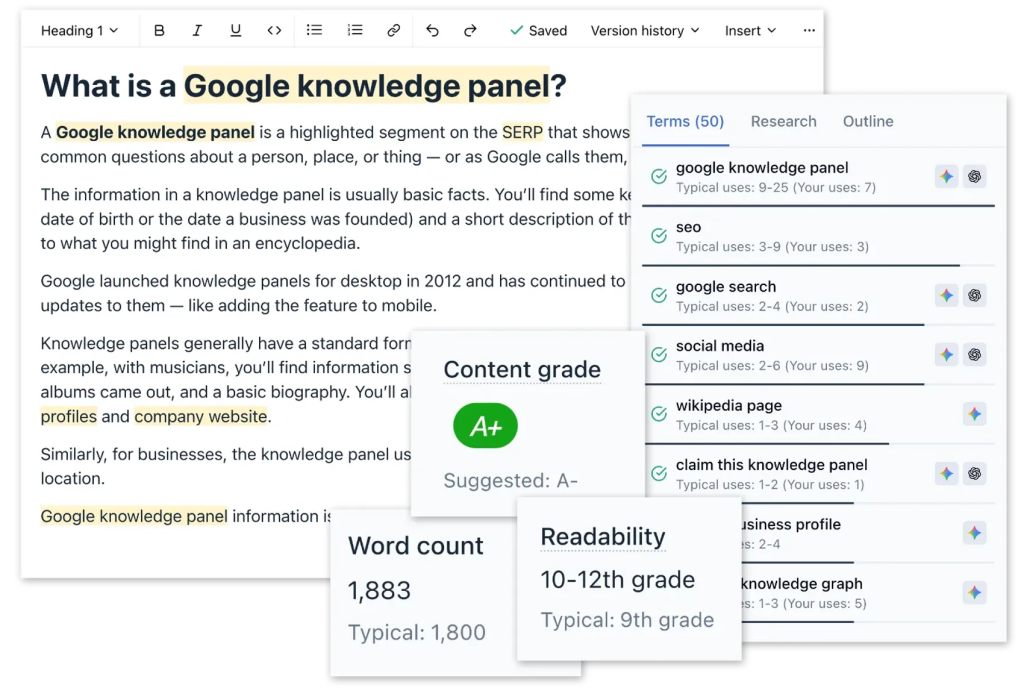
QuickCreator includes automatic page SEO optimization, but you should still review the key elements manually.
Focus on these areas:
- Title tag: Keep it under 62 characters and include the primary keyword near the beginning.
- Meta description: Write a 150-character summary that gives searchers a reason to click.
- Heading structure: Use one H1, then logical H2 and H3 levels. Avoid skipping levels.
- Internal links: Link to 2-3 related articles on your site to distribute authority and keep readers engaged.
- Image alt text: Describe each image accurately and include a keyword only when it fits naturally.
If you are new to on-page optimization, review the on-page SEO techniques checklist before publishing your first batch of articles. The fundamentals have not changed much, but AI search has made clear, structured content even more important.
Step 5: Publish and Monitor
QuickCreator supports direct publishing to your connected domain. Before you hit publish, run through a short QA checklist:
- Does the article answer the question in the first 100 words?
- Are all headings formatted correctly?
- Do images load and include alt text?
- Are internal and external links working?
- Does the tone match your brand voice?
After publishing, monitor performance in your analytics tool. Look for pages that get impressions but few clicks, which often signals a weak title or meta description. Pages that rank on page two are good candidates for a content refresh with updated data and additional examples.
QuickCreator vs. Manual Content Workflows
To understand where QuickCreator fits, compare it to a traditional manual workflow:
| Step | Manual Workflow | QuickCreator Workflow |
|---|---|---|
| Topic research | Keyword tools, SERP review, competitor analysis | Automated SERP analysis |
| Outline | Manual based on competitor review | Generated from top-ranking pages |
| Drafting | Writer produces full draft | AI draft informed by research |
| SEO optimization | Separate tool or checklist | Built into the platform |
| Publishing | CMS upload, formatting | Direct publishing with domain binding |
| Images | Stock photo search or designer | AI-generated within the workflow |
The biggest time savings come from eliminating the handoff between tools. Instead of exporting research from one platform, pasting it into a document, and then uploading to a CMS, the entire process happens in one place.
That said, QuickCreator is not a replacement for editorial judgment. The best results come from teams that use the platform for research and first drafts, then apply human review for accuracy, brand voice, and unique insights.
Common Mistakes to Avoid
1. Publishing the First Draft Unreviewed
AI drafts can contain outdated information, generic phrasing, or claims that do not match your product. Always review before publishing, especially for articles that mention pricing, features, or comparisons.
2. Ignoring Search Intent
A keyword might get traffic, but if the intent is transactional and you write an educational post, the article will not rank. QuickCreator's research step helps, but you should still verify that the outline matches what searchers want.
3. Skipping Internal Links
New articles need internal links from existing pages to get crawled and indexed quickly. If you publish without linking from your site's main navigation or related posts, the article may sit undiscovered.
4. Over-Optimizing
Stuffing the keyword into every heading and paragraph hurts readability and can trigger spam filters. Use the primary keyword naturally, and let related terms appear organically.
5. Neglecting Content Governance
If multiple team members are publishing through QuickCreator, establish clear guidelines for tone, fact-checking, and approval. For larger teams, an enterprise content governance framework can prevent off-brand or inconsistent content from going live.
How QuickCreator Compares to Autonomous Content Platforms
QuickCreator is a hands-on tool: you choose topics, review drafts, and publish. That works well for creators who want control over every article.
Some teams, however, need a more autonomous approach. Platforms like AgentBooks take the concept further by learning your product, mapping your market, and continuously publishing content with an approval-first or autopilot workflow. If you find that even QuickCreator's streamlined workflow still leaves you bottlenecked on topic selection and draft review, an autonomous content engine may be worth exploring.
The right choice depends on your volume and team size:
- Low volume, high control: QuickCreator or a manual workflow
- Medium volume, small team: QuickCreator with a defined review process
- High volume, limited editorial resources: An autonomous platform that handles research, drafting, and publishing with minimal intervention
For a deeper look at automating content without sacrificing SEO quality, see the autoblogging workflow guide.
Related reading
- What Is a Content Editor? Role, Skills & Workflow - Learn what a content editor does, how content editing differs from copy editing and proofreading, the skills required, and when to hire or become one.
- Multilingual Content: Strategy, Localization & AI Workflows - Learn how to plan, localize, and scale multilingual content that ranks globally. Covers strategy, translation vs. localization, AI workflows, and common mistakes.
Sources and further reading
- Quick Creator Review, Demo + Tutorial I Generate high-quality SEO articles with images in minutes - 👉 Get Quick Creator lifetime deal: https://appsumo.8odi.net/GmvyRmUse the link above to purchase the deal for yourself if you like what you see!✔️ Join Apps...
Frequently Asked Questions
Is QuickCreator good for beginners?
Yes. The platform handles the technical SEO work automatically, so beginners can focus on choosing topics and reviewing drafts. The learning curve is lower than managing separate research, writing, and publishing tools.
Can I use QuickCreator for client work?
Yes. Agencies can use QuickCreator to produce content for multiple clients. The key is maintaining separate brand settings and review processes for each client to avoid mixing tones or topics.
Does QuickCreator support custom domains?
Yes. The platform supports domain binding, so you can publish articles directly to your own domain rather than a QuickCreator subdomain.
How is QuickCreator different from a generic AI chatbot?
A generic chatbot writes from its training data. QuickCreator analyzes live Google search results before generating content, which helps the output align with current search intent and top-ranking page structures.
Can QuickCreator replace my content team?
No. QuickCreator automates research, drafting, and optimization, but human review is still essential for accuracy, brand voice, and unique insights. Teams that treat AI drafts as a starting point get the best results.
What types of content does QuickCreator work best for?
QuickCreator is strongest for SEO-driven blog content: how-to guides, listicles, comparison posts, and informational articles. It is less suited to deeply personal essays or content that requires original reporting.
Conclusion
QuickCreator simplifies the content production workflow by combining SERP research, AI drafting, SEO optimization, and publishing in one platform. The core workflow is straightforward: set up your workspace, choose a focused topic, generate a research-informed draft, refine it with your expertise, optimize the on-page elements, and publish to your domain.
The platform works best when you treat it as a research and drafting engine rather than a set-it-and-forget-it publisher. Review every draft, add unique insights, link to related content, and monitor performance after publication. For teams that need even less manual involvement, autonomous content platforms offer an alternative path, but QuickCreator remains a solid choice for creators who want control over every article they publish.
Start with the official QuickCreator Help Center for platform-specific documentation, and explore the Getting Started guide for detailed setup instructions.